
What This Guide Will Help You Do
This guide shows you:
- What to do after you receive an order
- How to process it properly
- How to update the order status
If you have already learned how to check orders, this is the next step.
Before You Start
Make sure you have:
- Logged into your WordPress dashboard
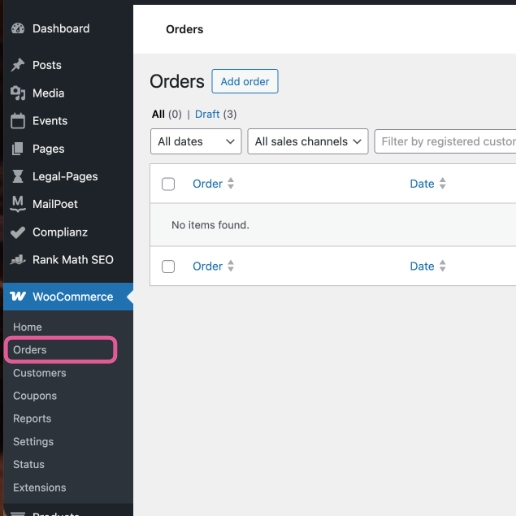
- Gone to WooCommerce > Orders
- Opened the order you want to work on
If you have not done that yet, go back to the previous guide first.
Step 1: Check the Order Details
Before doing anything, take a moment to check:
- Customer name and contact details
- Billing and shipping address
- What has been ordered
- Payment status
You are looking to confirm everything is correct.
If something does not look right, pause and double check before continuing.
Step 2: Confirm Payment
Look at the order status.
- Processing usually means payment has been received
- Pending payment means it has not
Only move forward if payment has been completed.
Step 3: Prepare the Order
This depends on what you sell.
You might:
- Pack a physical product
- Prepare a service
- Send a digital item
There is nothing to click here yet. This is just your normal business process.
Step 4: Add an Order Note (Optional but Helpful)
On the right-hand side, you will see Order Notes.
You can use this to:
- Leave internal notes for yourself
- Add a message for the customer
For example:
- “Order packed and ready to send”
- “Dispatched via Royal Mail”
This helps you stay organised.
Step 5: Update the Order Status
Once the order has been completed on your side:
- Find the Status dropdown
- Change it to Completed
- Click Update
This tells WooCommerce the order is finished.
It may also trigger an email to the customer, depending on your settings.
What Each Status Means (Simple Version)
- Processing
Paid and waiting to be fulfilled - Completed
Finished and delivered - On hold
Waiting for action (for example, manual payment) - Cancelled / Refunded
The order will not go ahead
You do not need to use all of these straight away. Focus on Processing and Completed first.
A Simple Workflow to Follow
For most small shops, it looks like this:
- New order comes in (Processing)
- You prepare and send it
- You mark it as Completed
That is it.
Keep it simple.
Common Mistakes to Avoid
- Marking an order as Completed too early
Wait until it has actually been fulfilled - Ignoring the order status
This helps you stay organised and avoid confusion - Overcomplicating the process
You do not need to use every feature
A Quick Reassurance
You are not going to break your shop by clicking around and learning.
If you are ever unsure, take a moment, read the screen, and move step by step.
Want More Detailed Guidance?
WooCommerce has its own documentation if you want to go deeper:
👉 https://woocommerce.com/documentation/woocommerce/getting-started/
This covers more advanced options, but you do not need everything there to manage your shop day to day.
Final Thought
Processing orders becomes routine very quickly.
Once you have done it a few times, it will feel straightforward and part of your normal workflow.
Start simple, build confidence, and only explore more features when you need them.