
Getting your images ready is an important part of preparing for your new website.
The photographs, logos and graphics you provide help me plan your page layouts and create a design that reflects your business.
You don't need professional photography or any technical knowledge. This guide explains what to gather, what works best and how to send everything over.
How Many Images Will I Need?
As a rough guide, please aim to gather 3 to 5 suitable images per page.
Some pages may need fewer, while galleries and portfolios will usually need more.
| Website page | Suggested images |
|---|---|
| Homepage | 4 to 6 |
| About page | 2 to 4 |
| Services overview | 3 to 5 |
| Individual service pages | 2 to 4 per page |
| Contact page | 0 to 2 |
| Portfolio or gallery | 6 to 12 or more |
These are starting points, rather than fixed requirements. The number actually used will depend on your content and website design.
A little extra choice is helpful. You don't need to decide exactly where each photograph will appear. I'll advise on the selection and placement.
Choose a Good Variety
Try to include images showing different aspects of your business, such as:
- You, your team or your workspace.
- Your products or services.
- Examples of completed work.
- Your business premises.
- Behind-the-scenes photographs.
A varied selection is more useful than several almost identical images.
If you're having your website redesigned, we may be able to reuse photographs from your existing site.
Choosing Suitable Website Photographs
You don't need to be a photographer, but a few simple things will help.
1. Use Good-Quality Originals
- Send the original, highest-quality photographs you have.
- Avoid screenshots or small images saved from social media.
- Choose photographs that are clear, well-lit and in focus.
- Don't resize or compress your images before sending them.
I'll prepare the images for website use.
2. Include Landscape and Portrait Images
- Landscape images work particularly well for wide banners and larger sections.
- Portrait images are useful for team profiles, service sections and other layouts.
- If you have both versions of a photograph, feel free to send both.
A good selection of landscape photographs is particularly helpful, but portrait images can be just as useful.
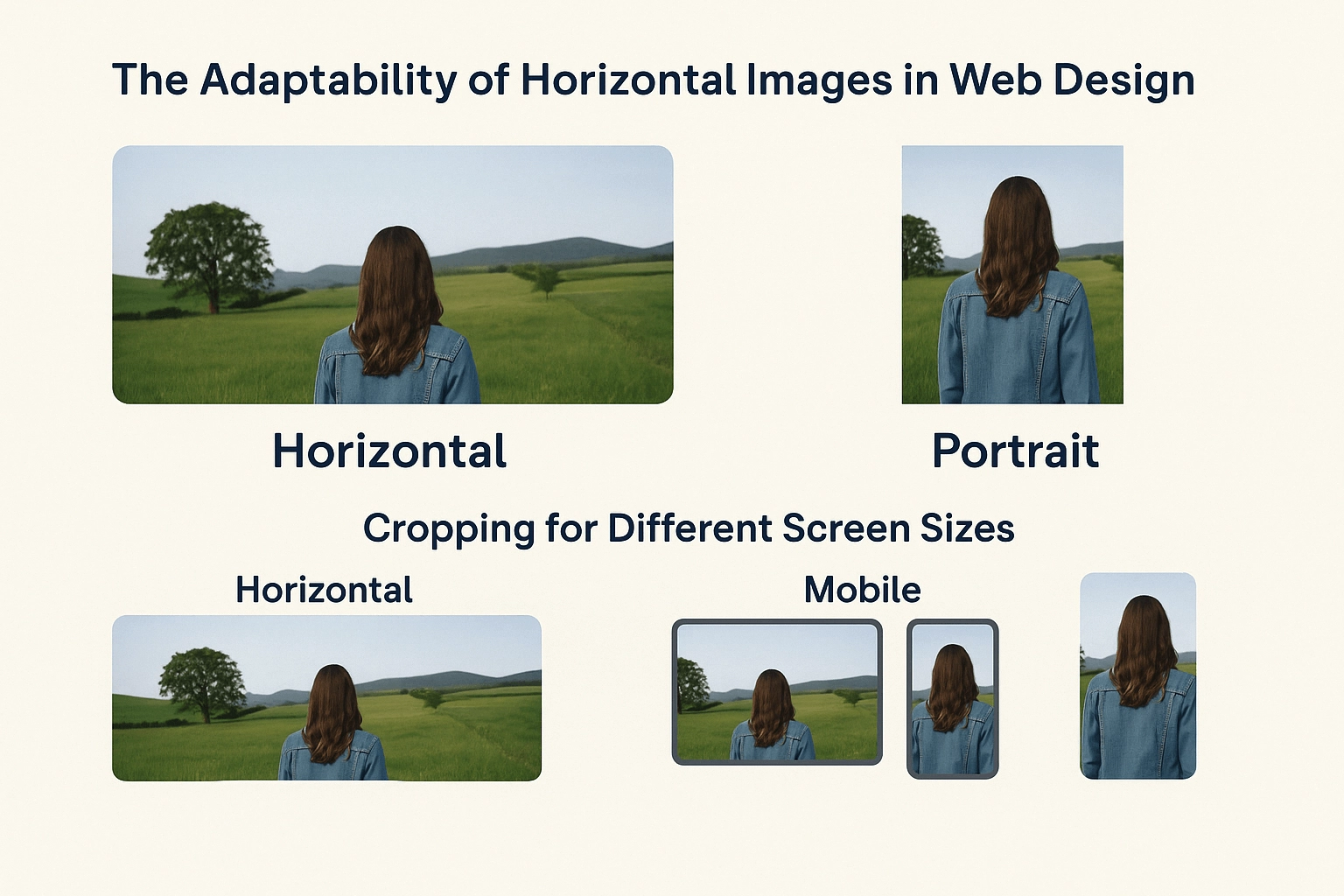
3. Allow Room for Cropping
Website images need to work on desktop computers, tablets and mobile phones.
The visible part of a photograph may change depending on the screen size.
Try to choose images with:
- Some space around the main subject.
- Important details away from the edges.
- Enough room for the image to be cropped without losing anything important.
For example: A photograph of someone standing right at the edge may look fine on a computer but get cropped awkwardly on a phone.
4. Avoid Adding Text to Photographs
Where possible, send photographs without text, headings or promotional messages already added.
I can add wording directly to your website so it remains readable on different screen sizes.
Preparing Your Business Logo
If you already have a logo, please send me the best-quality version available.
Preferred logo formats:
- SVG: Ideal for websites because it stays sharp when resized.
- AI or EPS: Original editable artwork, often supplied by logo designers.
- PNG: A high-resolution version with a transparent background.
- PDF: Useful if it contains the original vector artwork.
Logo Shape and Background
Ideally, your logo should be:
- Horizontal: A wide logo generally fits better in website headers.
- Transparent: No white or coloured box behind the logo.
- Clear and readable: Including when displayed at a smaller size.
If you have different versions, please send them all.
Only have a JPEG or a small logo? Send me what you have and I'll check it.
If your logo needs to be recreated, redesigned or converted into professional artwork, this would be additional work and quoted separately.
Don't have a logo yet? There's an optional AI logo prompt at the bottom of this guide.
Where Can I Find Images for My Website?
If you don't have enough photographs of your own, stock photography can help fill the gaps.
Some useful websites include:
For more suggestions, read my guide to sourcing affordable professional website images.
My Shared Magnific Image Library
You can also browse my shared image library for photographs and graphics that might suit your website.
Choose any images you particularly like and share your selections with me.
You don't need to find an image for every section. I'm happy to advise on what will work best.
Can I Use AI-Generated Images or Logos?
Yes, AI-generated images can work well for illustrations, backgrounds and decorative graphics.
However, please check them carefully.
- Accuracy: AI can produce strange details or incorrect lettering.
- Authenticity: Use genuine photographs when showing your actual products, premises, staff or completed work.
- Copyright: Check the AI tool's commercial usage terms and any intellectual property concerns.
- Logos: AI-generated logos may not be original or supplied in a suitable file format.
If you've created an AI image or logo, send me the original file and I'll check whether it's suitable for your website.
Any additional logo design or recreation would be quoted separately.
I've included some optional AI prompts at the bottom of this page if you'd like to experiment.
Website Images and Copyright
Please make sure you have permission to use any photographs or graphics you supply.
Images found through Google aren't automatically free to use.
This also applies to stock photography, Canva graphics and AI-generated assets, which may have their own licensing conditions.
You can read more in my Website Images & Copyright guide.
How to Send Your Website Images
For large files or multiple photographs, please use a file-sharing service rather than sending images individually by email or WhatsApp.
I recommend:
A Few Tips Before Sending
- Group related images into folders where possible.
- Use helpful filenames, such as
garden-landscaping-project.jpg. - Include your logo and any variations you have.
- Send original photographs rather than compressed copies.
- Let me know if there are particular images you'd like included.
Please aim to provide your images before your agreed project start date.
Having your content ready allows me to plan your website properly and helps prevent unnecessary delays.
If you're waiting for photography or can't provide something in time, please let me know as early as possible.
AI Prompts for Website Images and Logos
If you'd like to experiment with AI, the prompts below can help you create a logo or supporting website images.
Simply copy a prompt into ChatGPT or another AI image generator and replace the details in square brackets.
Create a Logo for Your Website
Copy and personalise this prompt:
Create a clean, professional logo for my business.
Business name: [Your business name]
Business type: [What your business does]
Preferred colours: [Your preferred colours]
Style: [Modern, traditional, minimal, elegant, friendly, etc.]
Requirements:
Horizontal layout, approximately 3:1 in proportion.
High resolution, ideally at least 1500 × 500 pixels.
Completely transparent background.
Clear, readable business name with correct spelling.
Simple design with minimal fine details.
No shadows, 3D effects or decorative backgrounds.
Space around the edges for flexible positioning.
Supply a transparent PNG.
If supported, provide a genuine editable SVG vector file.
Show the logo as a flat design, not on a business card, sign or mock-up.
Make sure the logo looks clear at smaller sizes and is suitable for use in a website header.
Tip: Check that the background is genuinely transparent and the business name is spelt correctly. AI tools don't always produce usable SVG files, even when requested.
Create a Website Banner Image
Copy and personalise this prompt:
Create a professional website banner image.
Business type: [Your business]
Subject: [What the image should show]
Style: [Natural photography, modern, bright, welcoming, etc.]
Requirements:
Wide landscape format, 16:9 aspect ratio.
High resolution, ideally 1920 × 1080 pixels.
Position the main subject slightly to the right.
Leave clear space on the left for website text.
Keep important details away from the edges.
Use natural lighting and realistic proportions.
No text, logos or watermarks.
Suitable for cropping on mobile screens.
Create a clean, professional image suitable for a small business website.
Tip: If you'd like website text on the right, ask AI to position the main subject on the left instead.
Create a Supporting Image for a Service Page
Copy and personalise this prompt:
Create a professional supporting image for a website service page.
Business type: [Your business]
Service: [Describe the service]
Subject: [What the image should show]
Style: [Realistic photography, illustration, modern, minimal, etc.]
Requirements:
Landscape format, approximately 4:3.
High resolution, ideally 1600 × 1200 pixels.
Clear, well-composed subject.
Natural lighting and realistic details where appropriate.
Leave space around the subject for cropping.
No text, logos or watermarks.
Suitable for a professional business website.
Keep the image relevant to the service and avoid exaggerated or misleading details.
Tip: Genuine photographs are generally preferable when showing actual products, staff, premises or completed work.