
Easy steps to stop strange fonts, spacing and colours appearing
When you paste text straight from Word, Google Docs or email, it often brings hidden styling with it. This can make your text look messy or break your layout.
Here’s how to paste it safely.

1. Copy your text as normal
Select the text in your document or email and copy it.
Helpful Keyboard Shortcuts
Select All
- Windows: Ctrl + A
- Mac: Cmd + A
Copy Text
- Windows: Ctrl + C
- Mac: Cmd + C
2. Paste as plain text (Windows Only)
This is probably the safest method as it removes all hidden formatting.
Use keyboard shortcuts
- Windows: Ctrl + Shift + V
If this works in your browser, you’ll get clean text immediately.
- Mac browsers don’t have a universal plain-text paste shortcut.
You must use the method below.
3. Use “Paste as text” inside the Divi text editor
Divi has a built-in option that strips hidden formatting.
- Open the Text Module you want to edit.
- Make sure you are on the Visual tab.
- Look for the small clipboard icon with a T (labelled “Paste as text”).
- Click it once to turn it on.
- Paste your content again.
Your text will now paste without any hidden styling.
This helps stop odd fonts, colours or spacing from appearing.
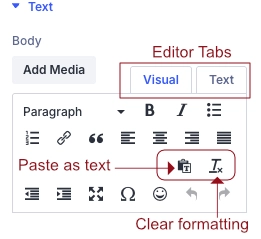
4. Or use the “Text" tab
This is helpful if your text still looks wrong.
- Open the module or block.
- Switch from the "Visual" text editor to the plain "Text" editor
- Paste your text.
- Switch back to Visual view.
This gives you a clean starting point.
5. Re-apply styling
Once the text is clean, use WordPress formatting to add :
- Add headings
- Add bold or italic
- Add links
- Add bullet lists
This gives you full control and keeps your site consistent.